
Resources
Help & articles
Guides, how-tos and news for your catering business.
Help topics
Using AI
AI Photos & Settings
What Puree's AI can do — generating menu-item photos, writing descriptions, importing recipes and detecting allergens — and how to control the results.
Puree’s AI helps right across your workflow — generating menu-item photos, writing descriptions, importing recipes, detecting allergens and more. This guide covers what the AI can do, how to control the look of your photos, and how AI credits are shared and tracked.
What Puree’s AI Can Do
Puree uses AI in several places. Every account starts with 5 free credits, and those credits are shared across all AI features — you spend from the same balance no matter which one you use. Different actions cost different amounts:
- Item photo generation (1 credit) — create a photo or illustration for a menu item
- Recipe import (1 credit) — turn a pasted or uploaded recipe into a structured recipe
- Supplier price-list extraction (½ credit) — pull prices out of a supplier price list
- Ingredient cost estimate & price research (1 credit each) — estimate and research ingredient costs
- Menu item descriptions, quote commentary and enquiry introductions (½ credit each) — AI-written copy
- Allergen detection & dietary classification (½ credit each) — flag allergens and dietary tags on items
- Document scan (½ credit) — turn a PDF or photo (a brief, a planner’s timeline, a dietary list) into a note on an enquiry or CRM contact
- Ingredient density estimate (¼ credit) — estimate volume-to-weight conversions
- Email summary (¼ credit) — turn a pasted email trail into a short note with the catering details pulled out
Generating Item Photos
To generate an image, go to the edit page for any item and choose one of two styles:
- Photo — a photorealistic food photo with natural lighting and casual plating
- Illustration — a simple line-art drawing, clean and minimal like a menu illustration
How It Works
- Navigate to an item and click Edit
- In the photo section, click either “Photo” or “Illustration”
- Wait approximately 20-30 seconds for the image to generate
- The generated image will appear in the photo area
- If you’re not happy with the result, remove the photo and generate again
Setting Your Photo Style
You can instruct the AI on exactly what your photos should look like, so every generated image matches your brand. Go to Settings → Account Details → AI Settings, then open the Photo style tab.
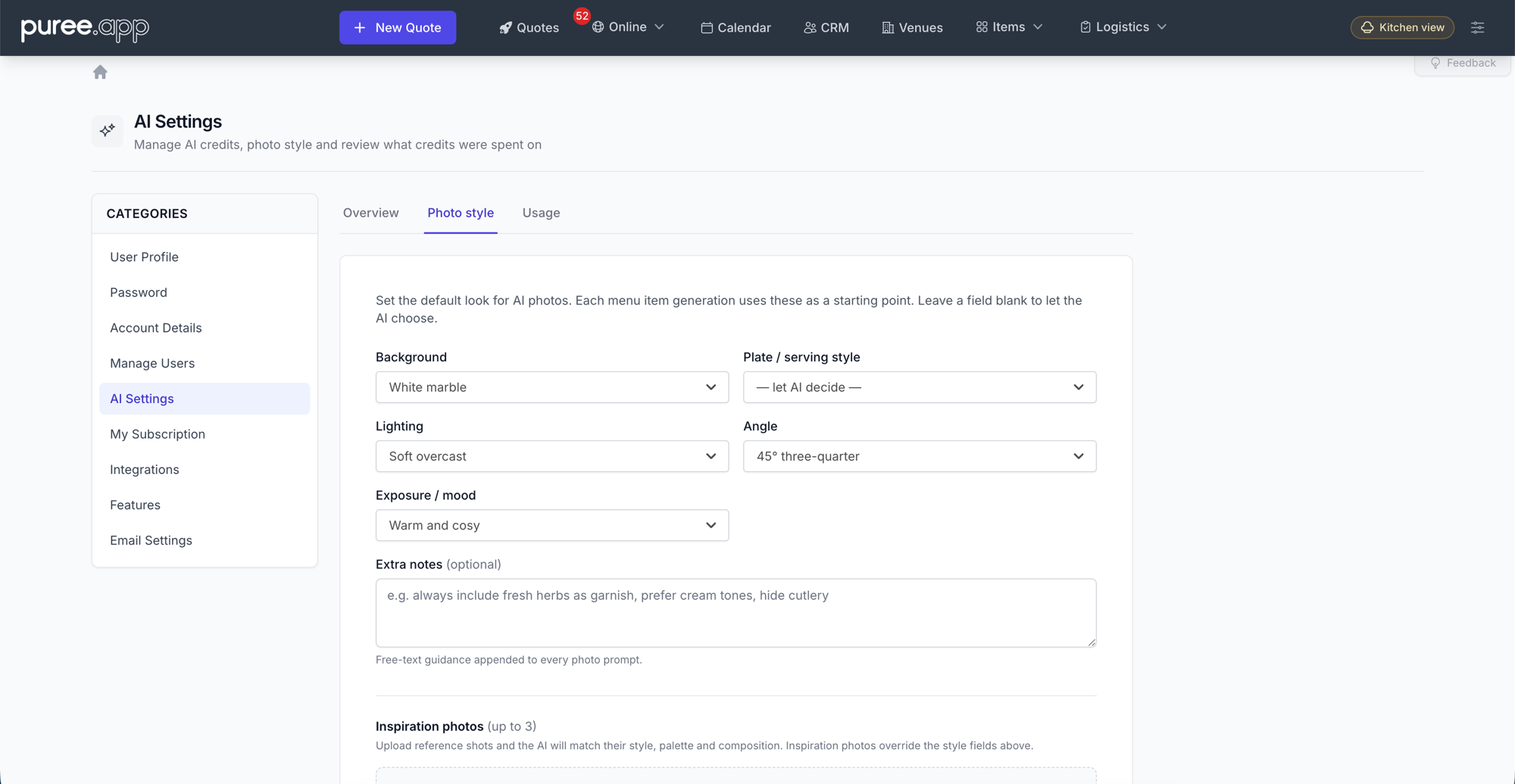
These settings are the default starting point for every menu item you generate. Leave a field on “— let AI decide —” (or blank) to hand that choice back to the AI.
- Background — the surface behind the food (e.g. white marble, dark slate, rustic wood)
- Plate / serving style — how the dish is presented (e.g. white plate, wooden board, bowl)
- Lighting — the lighting mood (e.g. soft overcast, bright daylight)
- Angle — the camera angle (e.g. 45° three-quarter, top-down, eye-level)
- Exposure / mood — the overall feel (e.g. warm and cosy, bright and airy)
- Extra notes — free-text guidance appended to every photo prompt (e.g. “always include fresh herbs as garnish, hide cutlery”)
Inspiration photos. You can upload up to 3 reference shots and the AI will match their style, palette, and composition. Inspiration photos override the style fields above — use them when you already have photography whose look you want to reproduce.
There are a few more options on this tab: expand Advanced to override the full prompt with your own text, tick Include brand logo in photos (if you’ve uploaded a logo), and toggle whether to show the AI image disclaimer on your orders and menus. Remember to click Save Changes when you’re done.
Tips for Better Results
- Add a detailed description to your item — the more detail, the better the result
- Make sure items are in the correct category — the AI uses the category name to understand the type of food
- Add options to your item (e.g. sizes, fillings) — the AI considers these when generating the image
- If a generated image doesn’t look right, remove it and try again — each generation produces a unique result
- Pro tip: Temporarily add a detailed description to your item (e.g. plating style) before generating, then remove the description afterwards. The AI uses the description for a better result, but it won’t appear on your quotes or online ordering
If a Photo Doesn’t Generate
If generation fails, Puree tells you why in a message at the top of the page, and the credit isn’t used:
- “AI credit limit reached” — you’ve used all your credits; top up (see below)
- “The image service couldn’t make a photo: …” — the AI image service turned the request down or couldn’t be reached, and the message gives its reason. Wait a minute and try again; if the same reason keeps coming back, contact us at email@puree.app
- “Something went wrong generating the photo” — something went wrong on our side. We’re notified automatically, so you don’t need to report it, but feel free to try again
Credits & Pricing
Each account starts with 5 free credits. Once they’re used up, top-ups are NZD $50 per 100 credits. Because credits are shared across every AI feature, one top-up covers photos, descriptions, allergen detection and everything else.
To purchase more credits, contact us at email@puree.app.
Viewing Your Usage
Head to Settings → Account Details → AI Settings to keep an eye on your credits. Alongside the Photo style tab, there are two more:
- Overview — shows your credits remaining, what each AI feature costs, and how many credits you’ve spent on each feature so far
- Usage — a detailed log of every credit-spending action, showing when it happened, which feature was used, how many credits it cost, which user triggered it, and what it was for. You can filter the log by feature or by user.
Important Notes
- AI-generated images are approximations — they may not perfectly represent your actual dishes
- You can always replace a generated image with a real photo by uploading one
- Generated images work great as placeholders until you have professional photos
- The generate buttons only appear when an item has no photo attached